
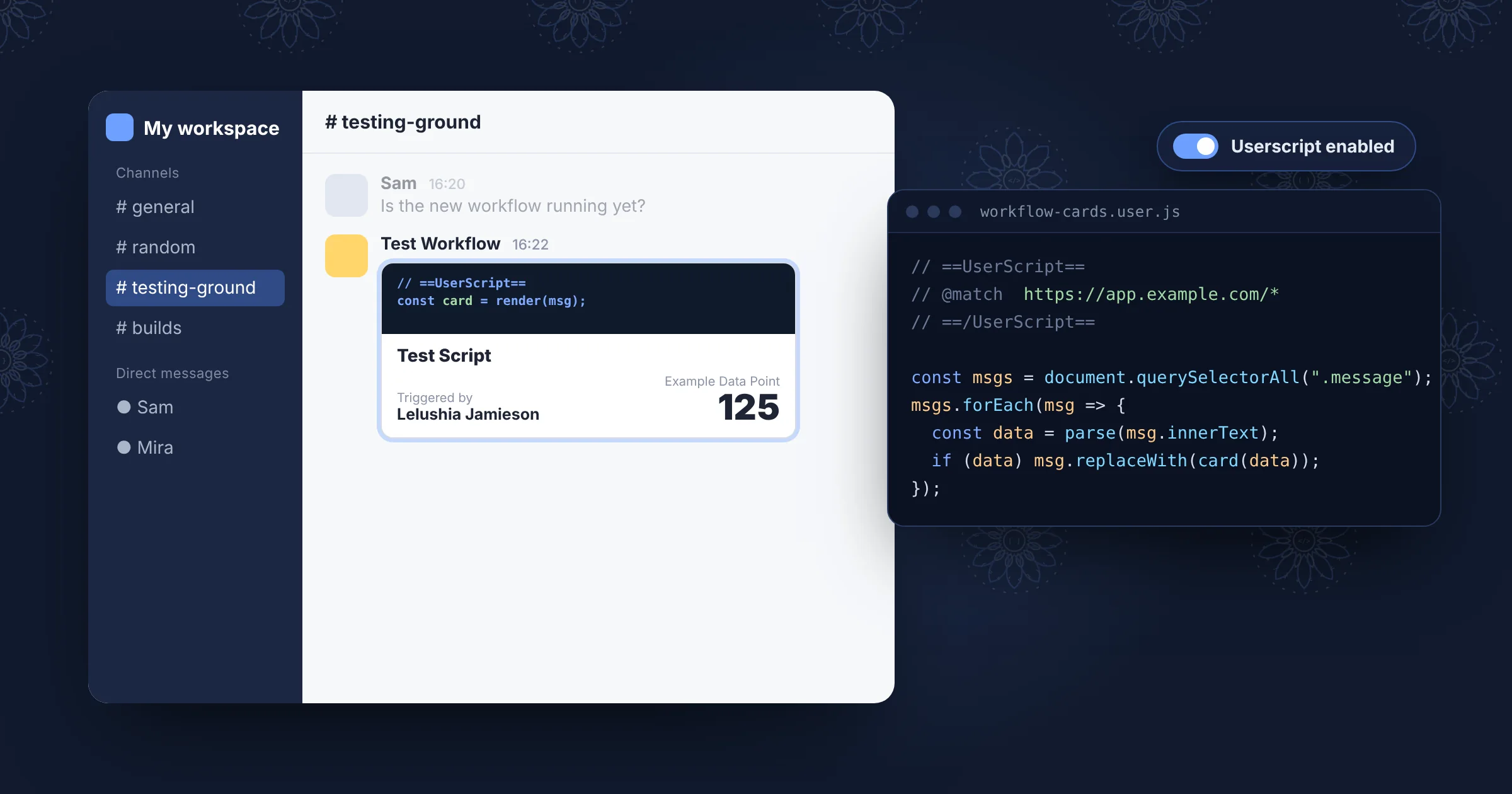

What is a "userscript"?
To put it simply, a userscript is a user-created script (or mod, if you will) that operates in the background, adding functionality to webpages. The ones I will be talking about are made using a popular extension called TamperMonkey which can be found, and installed, here.
Scripts can be used for anything from quality of life (QoL) improvements all the way to fully re-designing the website and making it "your own". For the purposes of this article I will be focusing on the QoL capabilities though I would encourage anyone interested to research the topic further if they would like to explore the full capabilities of this tool!
So, what can you actually make?
Good question! Anything!
I use tools like Slack in work and I have found, from my experience, that the UI leaves a lot to be desired. Coming from other apps/tools, Slack is quite lacking in message formatting. No headings, limited table functionality, too many lists, and everything looks like a giant block of text. Frankly, it seemed almost ancient. So, doing what I do best: tinkering, I researched ways I could improve the interface.
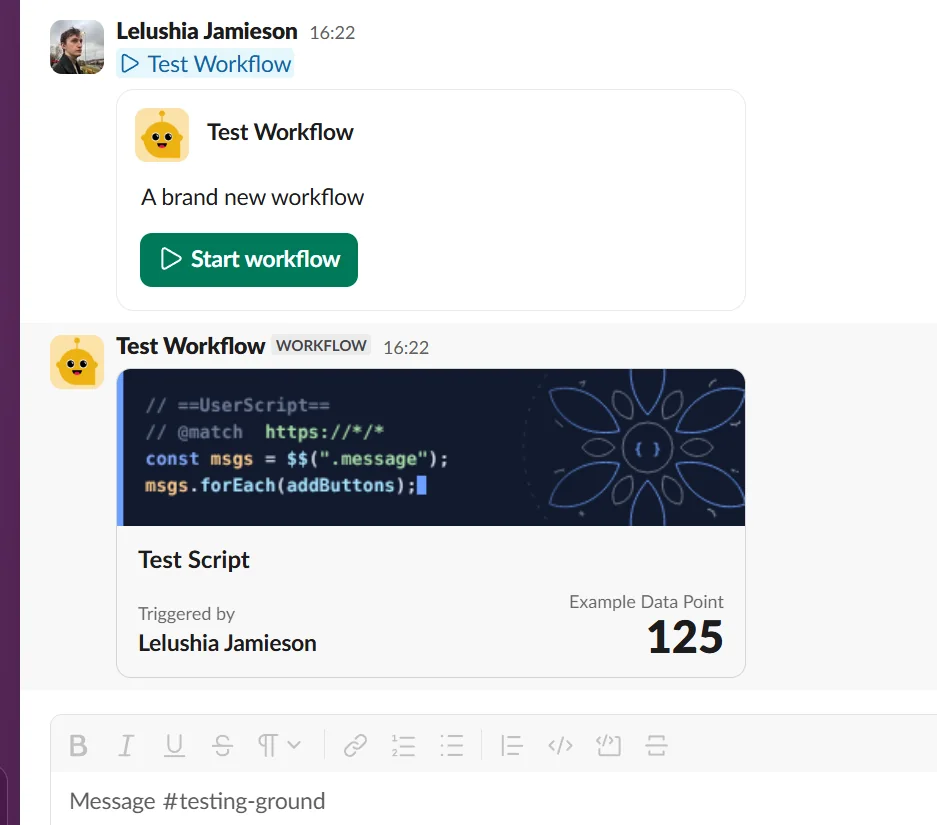
One such example is turning formatted Workflow (Slack's automations) into modern card-style elements, such as this:
"But, is that not a built-in feature?"
Surprisingly, no. The original content of the message sent by the workflow was:
{Test Script}
{Example Data Point: 125}
{Image URL: https://lelushia.com/static/img/code-banner-400x100.png}
User: Lelushia Jamieson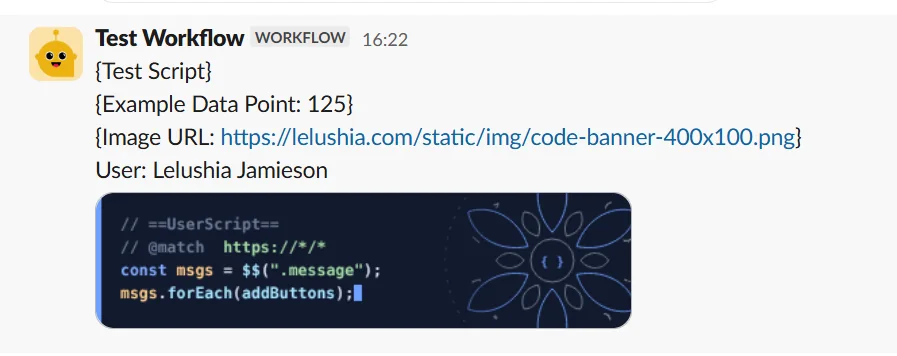
To me, which one is more readable is a no-brainer. The card-style formatting is considerably easier on the eyes and really makes the figures pop which I find Slack's messages lack.
This result can be easily achieved via userscripts.
// ==UserScript==
// @name         Slack workflow cards
// @description  Alter Slack Message Formatting
// @version      1.0
// @match        https://app.slack.com/*
// @grant        GM_addStyle
// ==/UserScript==

GM_addStyle(`
  .wf-card { max-width: 420px; margin: 4px 0; border: 1px solid rgba(128,128,128,.3); border-radius: 10px; overflow: hidden; }
  .wf-card img { display: block; width: 100%; height: auto; }
  .wf-card__body { padding: 10px 14px 12px; }
  .wf-card__title { font-size: 16px; font-weight: 700; margin-bottom: 8px; }
  .wf-card__row { display: flex; justify-content: space-between; align-items: flex-end; gap: 12px; }
  .wf-card__label { font-size: 12px; opacity: .65; }
  .wf-card__user { font-weight: 600; }
  .wf-card__stat { text-align: right; }
  .wf-card__value { font-size: 30px; font-weight: 800; line-height: 1; }
`);

const el = (tag, cls, text) => {
  const e = document.createElement(tag);
  if (cls) e.className = cls;
  if (text != null) e.textContent = text;
  return e;
};

function parse(text) {
  const m = text.trim().match(/^\{(.+?)\}\s*\{(.+?):\s*(.+?)\}\s*\{Image URL:\s*(https:\/\/\S+?)\}\s*User:\s*(.+)$/s);
  return m && { title: m[1], label: m[2], value: m[3], image: m[4], user: m[5].trim() };
}

function render(section) {
  section.dataset.wfDone = "1";
  const d = parse(section.innerText);
  if (!d) return;

  const card = el("div", "wf-card");
  const img = el("img");
  img.src = "https://slack-imgs.com/?c=1&o1=ro&url=" + encodeURIComponent(d.image);
  img.alt = "";
  card.append(img);

  const body = el("div", "wf-card__body");
  body.append(el("div", "wf-card__title", d.title));
  const row = el("div", "wf-card__row");
  const who = el("div");
  who.append(el("div", "wf-card__label", "Triggered by"), el("div", "wf-card__user", d.user));
  const stat = el("div", "wf-card__stat");
  stat.append(el("div", "wf-card__label", d.label), el("div", "wf-card__value", d.value));
  row.append(who, stat);
  body.append(row);
  card.append(body);

  section.style.display = "none";
  section.after(card);
  const msg = section.closest('[data-qa="message_container"]');
  const preview = msg && msg.querySelector(".c-message_kit__attachments");
  if (preview) preview.style.display = "none";
}

const scan = () => document.querySelectorAll(".p-rich_text_section:not([data-wf-done])").forEach(render);
new MutationObserver(scan).observe(document.body, { childList: true, subtree: true });
scan();
If you are not familiar with programming, not to worry. Simple, or even advanced, scripts can be made through the use of AI these days - even AI running on your own hardware. Simply put, this script is running on the Slack domain under any directory (https://app.slack.com/*) and listening for any changes where it can find a message that matches the formatting of the original message.
Upon finding a match, the script breaks the message into its relevant data points and then re-renders the message in a card-style format for the user's viewing pleasure. You can take this a lot further and add live data pulls, buttons, export options, and the list goes on - feel free to pop anything you create in the comments!
If you are collaborating in a team of people and the formatting of your data matters, every person needs to have the userscript installed for the updated formatting to be visible. These scripts only affect the visuals on your own computer and do not affect the actual message stored and displayed by Slack.
FAQ
- Does this work on mobile? Yes and no. If you are happy to use Slack on a browser and you request the desktop website, it *is* possible. You will still need to install an extension for userscripts (on iOS you need to install an app for Safari in the AppStore) and install the script via there. I have verified this works but it is not an ideal use-case.
- Does this work on the desktop app? No. While theoretically possible to get working, the time and effort it would take to do so are not worth it. Slack is made using Electron anyway which is a Chromium browser so the web-version is essentially the same as the browser version.
- How can I make the browser version behave like the app? On Chrome you can install web-pages as "apps". To do this, open up Slack, click the ... burger icon in the top-right, click Cast, save and share, and then click "Install as an app". This will add Slack as its own app and you can pin it to your taskbar and get the same notification icons, its own portable window, and no URL bar at the top - plus, all scripts still work flawlessly!
Lelushia
Was a fun first post to kick things off. Hoping to bring greater levels of detail in future posts and cover a variety of topics.